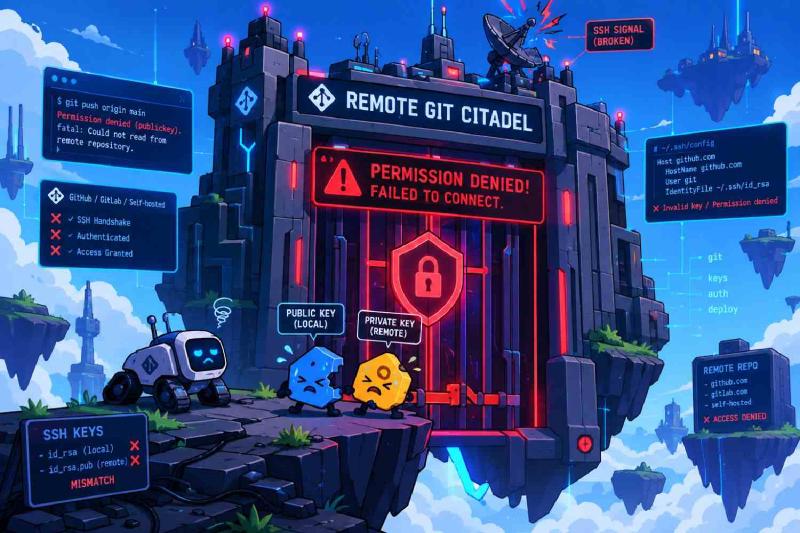
I ran git push origin main like I’ve run it a thousand times before, and instead of the usual output I got a wall of red: Permission denied (publickey). Didn’t touch my keys. Didn’t change a line of config. Checked GitHub’s status page just to rule it out — everything green on their end. My machine had somehow locked itself out of its own remote overnight, and nothing about that made sense until I actually went looking instead of guessing.
The instinct everyone has here is to just generate a fresh key pair and move on. Don’t do that yet — it’s very rarely the actual problem, and regenerating blind just means you’ve now got two sets of keys to debug instead of one. The real cause is almost always one of three things: a system update silently tightened OpenSSH’s permission checks, a reboot killed your ssh-agent and dumped everything it had cached in memory, or your setup is still leaning on an algorithm modern SSH has started deprecating. None of those need a new key. They need you to actually find which one broke.
Stop Guessing, Start Interrogating #
First move, every time: force SSH to tell you exactly where the handshake is failing instead of speculating.
ssh -Tv git@github.comSwap the domain for gitlab.com or whatever your provider is. A healthy connection ends with something like Authenticating with public key "ed25519-key-name", then Server accepts key, then a shell greeting confirming you’re authenticated. If instead you see Permission denied (publickey) right after it exhausts every identity it tried, you’re looking at one of three things: the agent isn’t actually presenting your key, the remote doesn’t have your public key registered at all, or your local file permissions are getting the key rejected outright before it’s even offered.
The Permission Bits Nobody Thinks to Check #
This one’s the quiet killer after any system update — Linux kernel bump, macOS patch, doesn’t matter. OpenSSH enforces strict permission checks on your .ssh directory and its contents, and if an update so much as nudges those bits, the client refuses to read the key. No error pointing at the real cause, either — you just get the generic denial and have to know to check this.
chmod 700 ~/.ssh
chmod 600 ~/.ssh/id_ed25519
chmod 600 ~/.ssh/id_rsa
chmod 644 ~/.ssh/id_ed25519.pub
chmod 644 ~/.ssh/id_rsa.pub
chmod 600 ~/.ssh/config
Directory stays owner-only across the board. Private keys get owner read/write, nothing for group or other — anything looser and OpenSSH just drops that key from the authentication chain silently. Public keys can be world-readable, that’s fine, they’re public. Run this block and more often than not your connection just comes back to life right there.
Reviving a Dead Agent #
If a reboot or update happened, your ssh-agent process is probably gone, and with it, everything it had loaded into memory.
Start a fresh one in your current shell:
eval "$(ssh-agent -s)"You’ll get something back like Agent pid 12450 confirming it’s running. Then load your key back in:
ssh-add ~/.ssh/id_ed25519Older setups still running RSA would use ssh-add ~/.ssh/id_rsa instead. Check what actually made it in:
ssh-add -lIf that comes back with The agent has no identities., the add didn’t take — don’t move on assuming it worked, go back and check why.
Make the Agent Remember on Its Own #
Manually re-adding your key after every reboot is a workflow you’ll abandon within a week. Put a real config in place instead:
nano ~/.ssh/configHost *
AddKeysToAgent yes
UseKeychain yes
IdentityFile ~/.ssh/id_ed25519
Host github.com
User git
IdentityFile ~/.ssh/id_ed25519
IdentitiesOnly yes
Host gitlab.com
User git
IdentityFile ~/.ssh/id_ed25519
IdentitiesOnly yesAddKeysToAgent yes means the agent picks the key up automatically the next time it’s used, no manual ssh-add required. UseKeychain yes is macOS-specific — it hands your passphrase to Apple’s Keychain so you’re not retyping it after every reboot; skip that line on Linux, it’s not applicable there. IdentitiesOnly yes matters more than it looks — without it, your client offers every key sitting in .ssh to the remote server on each attempt, and providers like GitHub will rate-limit or lock you out for exactly that kind of spam. Save it, then lock the permissions back down: chmod 600 ~/.ssh/config.
Check the Protocol Didn’t Quietly Switch #
Sometimes the key is completely fine and the real issue is that your remote URL drifted from SSH to HTTPS, or the other way, somewhere along the way — a clone through a GUI tool, a copy-pasted URL, whatever. Check it:
git remote -vIf it’s sitting on HTTPS when you meant to be on SSH:
origin  https://github.com/username/repository.git (fetch)
origin  https://github.com/username/repository.git (push)
Switch it back:
git remote set-url origin git@github.com:username/repository.gitAll the SSH key work in the world won’t fix a connection that’s trying to authenticate over the wrong protocol entirely.
Quick Reference #
| Error | Underlying cause | Fix |
|---|---|---|
Permission denied (publickey) |
Loose permissions on ~/.ssh/id_ed25519 |
chmod 700 ~/.ssh and chmod 600 ~/.ssh/id_ed25519 |
Could not open a connection to your authentication agent |
ssh-agent isn’t running |
eval "$(ssh-agent -s)" |
The agent has no identities |
Key dropped from memory after reboot/update | ssh-add ~/.ssh/id_ed25519 |
Connection closed by remote host |
Cipher mismatch or deprecated RSA key | Generate a fresh ed25519 key pair |
Every one of these traces back to the same handful of root causes — permission drift, a dead agent, a protocol mismatch — and every one of them is checkable in under a minute with the commands above. The new-key-pair move is a last resort, not a first instinct. Work the checklist first.